

Business Permit
OFFICE: BPLO
STEPS TO REGISTER AN ACCOUNT AND APPLY FOR A BUSINESS PERMIT
IMPORTANT REMINDER:
Ensure that all submitted information and documents are accurate and complete to avoid delays in processing.
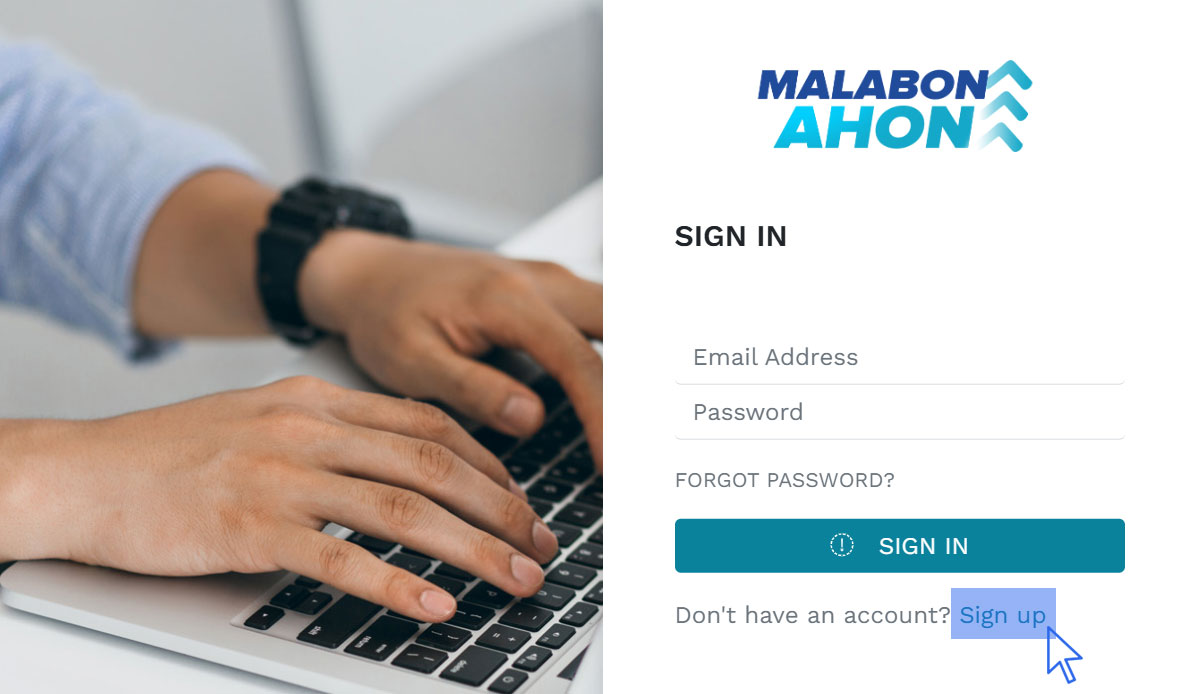
STEP 1: Sign Up
- Click Sign Up.
- Fill out all the required information.
- Make sure all details are correct before submitting.
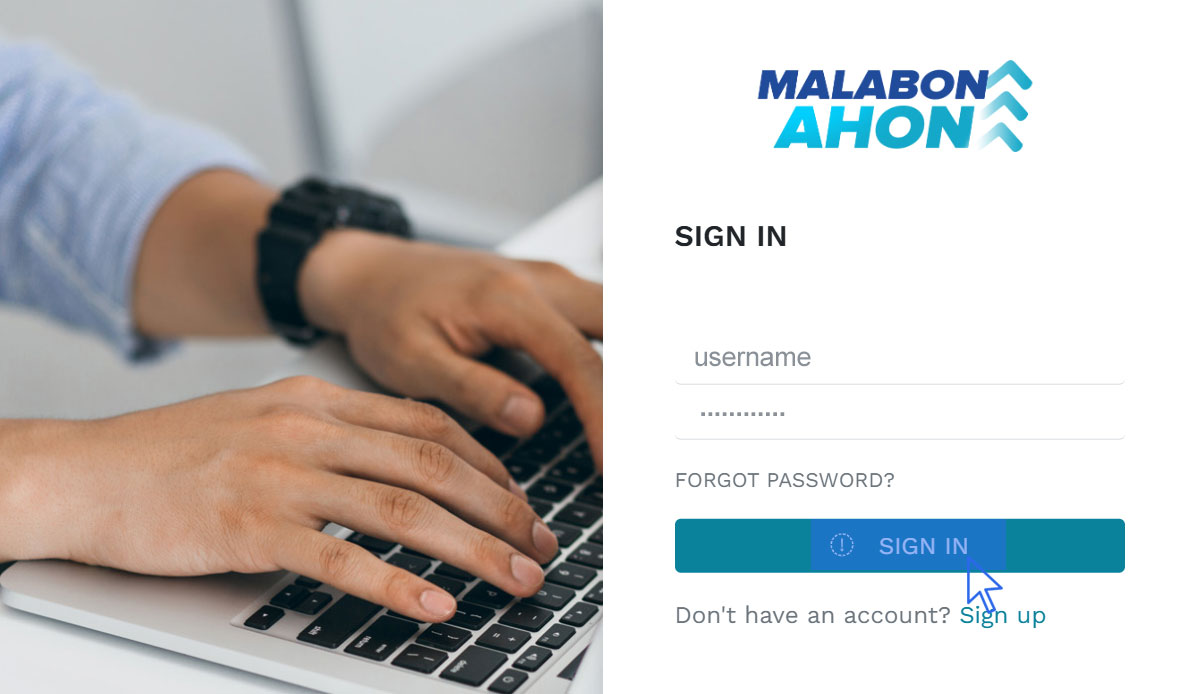
STEP 2: Log In
- Once confirmed, log in using your registered email address and password.

Step 1: Register New Business
- Log in to your account.
- Click REGISTER NEW BUSINESS.
- Complete all required business details and information.
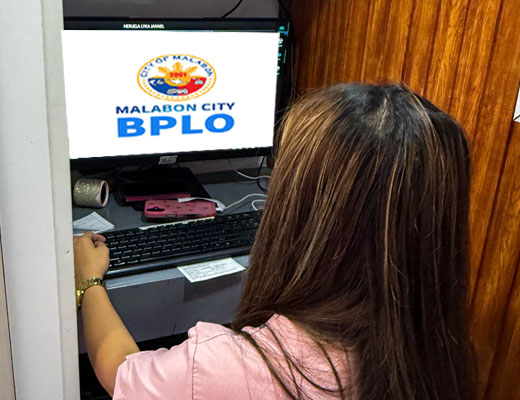
Step 2: Upload Requirements
- Upload the necessary documentary requirements.
- Wait for your application to be processed and approved.
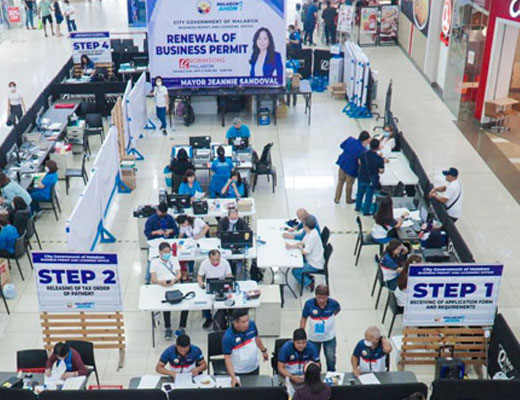
Step 3: Compute and Pay Business Tax
- Click COMPUTE BUSINESS TAX.
- Download the Tax Order of Payment (TOP).
- Save a copy for your records.
- Pay through:
o LANDBANK Online Payment Method, or
o Over-the-counter at the Cashier’s Window.
Step 4: Print or Claim Your Permit
- After payment, you may print your permit online.
- You may also claim the original copy of business plate/sticker at the Business Permits and Licensing Office (BPLO), 3rd Floor, Malabon City Hall.
Step 1: Select Business Renewal
- Log in to your account.
- Click BUSINESS RENEWAL.
- Enter your Business Account Number found on your existing permit.

Step 2: Renew Application
- Complete the required business details.
- Click RENEW under the Action column.
Step 3: Declare Gross Sales
- Declare your Gross Sales.
- Attach the required supporting documents related to your previous year’s sales.

Step 4: Compute and Download Payment Order
- Wait for approval.
- Click COMPUTE BUSINESS TAX.
Choose Full-Year or Quarterly Payment.
- Download the Tax Order of Payment (TOP).

Step 5: Settle Payment
- Pay online via LANDBANK Payment Method and proceed to checkout, or
- Pay over-the-counter at the Cashier’s Window.
Step 6: Print or Claim Your Permit
- After payment, you may print your renewed permit online.
- You may also claim the original copy of business plate/sticker at the BPLO, 3rd Floor, Malabon City Hall.
Public Services Directory
Education
Engineering / Public Works
E-Government Services
Public Information Office:
(02) 8281-4999 Loc. 6001 & 6002
Disaster:
(02) 8281-4999 Loc. 1017 & 1018
Police:
(02) 8281-1133 * (02) 8281-1135 * (02) 8281-1137
* (02) 8281-999 * (02) 8288-3895
* (02) 8281-4999 loc, 1008 & 1012
Mayors Complaint and Action Team (MCAT):
(02) 8281-4999 Loc. 1010
Fire:
(02) 8361-9712 * (02) 8281-1141
* (02) 8281-4607
Copyright © 2026 Malabon City. All Rights Reserved. Web Development by MISD.